
Wondering how to add a current account in Google Pay? The process is simple—just download the Google Pay for Business app. Unlike the regular Google Pay app, the Business version is built specifically for merchants and business owners. It lets you link current accounts, receive customer payments, generate QR codes, track settlements, and manage all your business transactions in one place.
Even if the process feels new, it’s easy to follow. This guide walks you through the exact steps, documents required, and common fixes so you can link your current account smoothly on the first attempt.
Quick & Easy Process to Add Your Current Account in Google Pay Business
If you want to accept customer payments, generate QR codes, or receive settlements directly into your current account, then the Google Pay for Business app is the right platform. You can easily link your current account to Google Pay, and it works just like UPI—your current account becomes your business’s dedicated UPI payment method.
Before you begin, make sure you have the required documents ready.
Documents Required for Google Pay for Business
Google Pay Business requires verification to prevent fraud and ensure secure settlements. You may need:
✔ Mandatory
- PAN card (personal or business)
- Bank account number + IFSC
- Mobile number linked with the bank
✔ May be required (based on business type)
- Udyam Certificate (MSME)
- GST registration (if applicable)
- Business registration proof
- Shop Act License
- Partnership Deed
- Incorporation Certificate (for companies)
✔ For home businesses / freelancers
You may only need:
- PAN
- Bank account
- Basic verification (OTP)
Your Current Account + Google Pay Business: Here’s How to Connect Them
Just follow these easy steps to set up your current account on Google Pay for Business without any confusion.
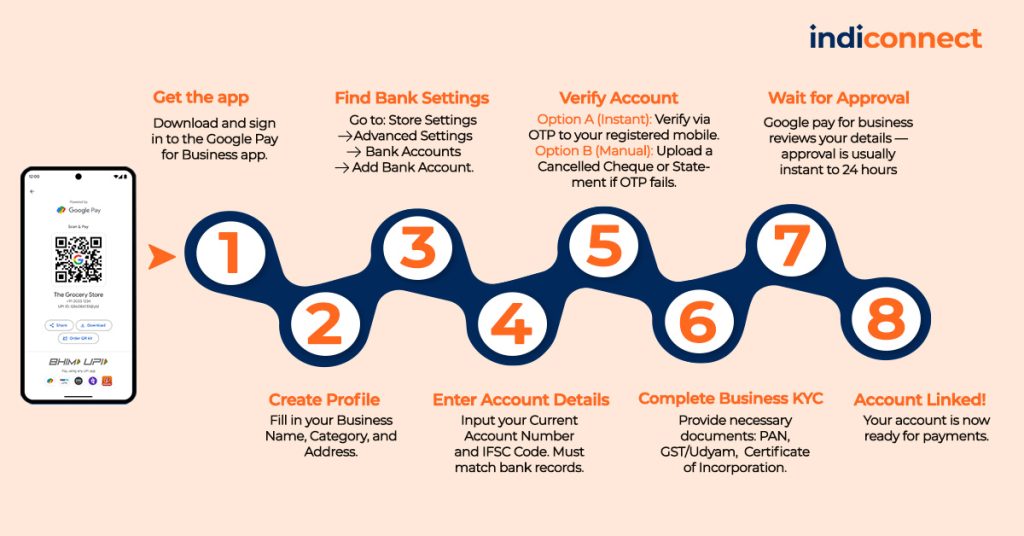
Step 1: Download the Google Pay for Business App
Search for “Google Pay for Business” on Play Store / App Store. It is a separate app, not the regular Google Pay.
Open it → Sign in with your Google account.
Step 2: Set Up Your Business Profile
You’ll be asked to fill in details like:
- Business name
- Business category
- Address
- Phone number
- Store location (optional)
Why this matters: This is how your customers will see your business QR code and payment receipts.
Step 3: Go to Store Settings → Advanced Settings → Bank Accounts
Google keeps bank settings deep inside the menu to avoid accidental edits.
Follow this path:
Store Settings → Business Details → Advanced Settings → Bank Accounts
Now you’ll see Add Bank Account.
Tap it.
Step 4: Enter Your Current Account Details
You will need:
- Account Number
- IFSC Code
Make sure details are exactly as per bank records.
Google Pay Business will automatically connect to your bank for verification.
Step 5: Verify Your Bank Account
Verification can happen in two ways:
a) Instant verification via OTP (most common)
Google sends an SMS from your registered mobile number.
If this fails:
- SIM card mismatch
- Mobile number not linked to bank
- SMS balance low
- Network problems
Fix the issue → retry.
b) Manual verification (for some co-op banks & current accounts)
You may be asked to upload:
- Cancelled cheque
- Bank passbook image
- Statement first page
This helps Google confirm account ownership.
Step 6: Complete Business KYC
Depending on your business category, Google may ask for:
- PAN verification
- Business proof
- GST/Udyam documents
For freelancers / small sellers:
- Sometimes only PAN + OTP is enough
For registered businesses:
- Certificate of incorporation / partnership deed may be required
This step ensures your settlements go to a valid business account.
Step 7: Wait for Google Verification Approval
Usually takes:
- Instant to 30 minutes → For basic setups
- 1–24 hours → For businesses requiring documents
- 1–3 days → For manual verification (rare)
You will receive a confirmation notification once approved.
Step 8: Your Current Account Is Now Linked
You can now:
- Accept customer payments via QR
- Receive settlements directly into your current account
- Track all business transactions
- Download reports for GST/accounting
- Enable Auto-Settlement
This method is ideal for:
- Shops
- Restaurants
- Service providers
- Online sellers
- Home businesses
- Startups
- Freelancers
Also Read: How to Open a Digital Current Account (Step-by-Step)
If your business needs more control than what Google Pay offers — such as multi-user access, automated reconciliation, digital current account opening, branch-level controls, or instant settlements — platforms like IndiConnect are designed specifically for SMEs and co-operatives.
We allow you to open fully digital current accounts, manage member-wise payments, and even handle UPI collections with automated ledger reconciliation, which standard UPI apps don’t support.
Can Multiple Users Link the Same Current Account on Google Pay?
Yes — but only if each user is an authorised signatory and has their own mobile number registered with the bank for that current account.
Google Pay verifies an account through the mobile number linked to the bank, so multiple people can only add the same current account if:
- Their mobile number is officially mapped to that current account
- They are authorised to operate the account
- The bank supports multi-user UPI access for that account
If any user’s mobile number is not linked to the bank account, Google Pay will fail during SMS verification and the account cannot be added.
For most businesses, this means: Yes, multiple partners/directors can link the same current account—if each has their number registered with the bank.
When It’s Not Possible
Linking won’t work if:
- Only one mobile number is registered
- Users are not added as official operators in the bank
- The bank restricts multi-user UPI for current accounts
- Google Pay for Business KYC is approved for only one owner
Google Pay follows the bank’s rules, so if the bank blocks multi-user access, GPay cannot override it.
If your team needs multiple users to operate the same current account, IndiConnect offers a digital current account system where business owners can assign roles, permissions, and access levelsto different staff or branches.
Current Account in Google Pay: Common Problems & Quick Fixes
Even if you follow the steps correctly, some issues are common. Here’s how to fix them:
| Issue | Possible Fixes |
| SMS verification failing | • Insert the registered SIM in SIM Slot 1. • Ensure your SIM has SMS balance. • Temporarily disable VoLTE or dual-SIM settings. • Restart your phone and retry. |
| Google Pay for Business KYC not approved | • Upload clear, readable documents. • Ensure your business name matches your official documents. • Use a cancelled cheque with a printed account holder name. • Re-check PAN details for accuracy. |
| Settlements delayed | • It may be due to weekends or bank holidays. • Fix any mismatch in business verification. • The bank server may be down temporarily. • Try switching the settlement bank account and retry. |
Conclusion
Adding your current account to Google Pay is a smart way to simplify your business payments. However, Google Pay is great for basic UPI transactions, but if you need a complete business banking and payment solution—including
- Fully digital SME current accounts
- Branch/member-level access
- Automated reconciliation
- API-based payments and collections
IndiConnect provides all of this under one secure platform. It’s designed for businesses that want more control, faster onboarding, and organised financial workflows.
Sign in today and begin your digital banking journey.
FAQs
1. Can I receive customer payments through my current account in the regular Google Pay app?
No, the regular Google Pay app does not support receiving customer or business payments into a current account. To accept payments from customers, you must use the Google Pay for Business app, which is designed specifically for merchant transactions and settlements.
2. Can we add a current account to PhonePe?
Yes, PhonePe allows users to add a current account as long as the bank supports UPI for that specific account. You can open the PhonePe app, go to the bank accounts section, add your bank, and complete mobile number verification to link the current account.
3. Can a current account be used for UPI transactions?
Yes, current accounts can be used for UPI transactions if UPI has been enabled by the bank. Many banks now allow SMEs, traders, and co-operatives to use their current accounts for both incoming and outgoing UPI payments without restrictions.
4. How do I add a current account in UPI?
To add a current account in any UPI app, open the app, go to the bank account section, choose your bank, and verify your mobile number linked to the current account. Once the SMS verification is successful, you can set your UPI PIN and start using the account for payments.
5. Why is my current account not showing in UPI apps?
A current account may not appear in UPI apps if the bank has not enabled UPI for that account type, if the mobile number linked to the account is incorrect, or if UPI activation is pending on the bank side. Temporary server issues or outdated account types can also prevent it from showing.
6. Why am I unable to add my current account in Google Pay?
You may face issues adding a current account in Google Pay if SMS verification fails, if the registered mobile number is not in the primary SIM slot, if the account is not UPI-enabled, or if the bank is experiencing downtime. In some cases, older current accounts require UPI activation directly through the bank.
7. Do all banks allow current accounts on UPI?
Most private and public sector banks now support UPI for current accounts, but some co-operative banks and older current accounts may still require manual activation. If your account does not appear in the UPI list, it’s best to check with your branch regarding UPI availability.







AI Music Generator
I didn’t realize there were different document requirements based on the type of business. This is helpful—especially for freelancers like me!