
Every business wants online payments. But what no one tells you is this: the real challenge isn’t choosing the gateway — it’s integrating it properly.
The moment you plug a payment gateway into your website, you’re connecting three worlds:
- your frontend (what the customer sees)
- your backend (what the system knows)
- the payment processor (who actually moves the money)
And here’s the part most teams underestimate: a minor integration mismatch can cause a major revenue leak. Payment processors report that a significant portion of failed transactions stem from incorrect or incomplete integrations — not customer errors.
If even one layer isn’t aligned, payments fail, users drop off, and the business loses trust and revenue.
This guide is designed to help you prevent that.
Before You Start: What You Need in Place
If your website is already live and now you’re ready to accept online payments, there are a few essentials you need to have in place before beginning the integration. These aren’t technical extras — they’re the foundation that ensures money can move securely and legally through your system.
1. A Merchant Account
To process payments, you’ll need a merchant account with a payment gateway like IndiConnect, which offers seamless onboarding and robust settlement management, or any other provider you prefer.
2. Completed KYC Verification
Every payment gateway requires business verification.
You’ll need:
- Business PAN/GST
- Bank account details
- Authorized signatory documents
If your KYC isn’t approved, you won’t be able to move to live transactions — only test mode.
3. API Keys (Test + Live)
Once your account is set up, the gateway provides two sets of keys:
- Test Keys → for running trial payments
- Live Keys → for actual customer transactions
These keys are what connect your website to the payment processor. They must be stored securely — never in public frontend code. Try payment gateways like IndiConnect provide easy access to API keys through a user-friendly dashboard, simplifying the setup process.
4. A Backend Server (for Most Integrations)
If your site is built with HTML/JS only, you can trigger basic client-side checkout flows. But for secure payment verification, order creation, and webhook handling, you’ll need a backend built on:
- PHP
- Node.js
- Python
- Java
- .NET
This is where the actual ‘payment logic’ sits.
5. HTTPS / SSL Certificate
Even if your website works without HTTPS, most payment gateways won’t allow integration on a non-secure domain.
HTTPS ensures:
- Secure data transmission
- Trustworthiness for customers
- Smooth redirection between your site and the gateway
If your site still runs on http://, fix that first.
Steps to Follow for Integrating a Payment Gateway Into Your Website
Follow these seven simple steps to set up a secure and smooth payment gateway integration on your website, no matter your tech stack.
Step 1: Create Your Payment Gateway Account
Before you can integrate payments into your website, you need an active merchant account with a payment gateway. This is where all your transactions, settlements, refunds, and API access will be managed.
1. Choose Your Provider
Choose a payment gateway that aligns with your business model, location, and transaction volume—such as IndiConnect, a secure and user-friendly platform that simplifies online payment processing and transaction management for businesses.
Consider:
- Supported payment methods (UPI, cards, EMI, netbanking)
- Settlement timelines
- Pricing
- Documentation quality
- Plugin availability (for WordPress, Shopify, Magento, WooCommerce, OpenCart, etc)
2. Complete the Activation Process
After creating the account, you must complete the KYC and business verification.
Typically required:
- Business identity (PAN/GST)
- Bank account details
- Contact details of the authorized person
- Website URL and product information
Without approval, you can only use test mode, not live payments.
3. Access Your Dashboard
Once activated, you’ll get access to the merchant dashboard.
From here you can:
- View transactions
- Generate settlements
- Access API keys
- Manage webhooks
- Create orders
- Enable/disable payment methods
This dashboard becomes your control center for everything payment-related.
Step 2: Get Your API Keys
API keys are the credentials that connect your website to the payment gateway securely. Without these keys, your website cannot communicate with the gateway’s systems.
1. Test Keys vs Live Keys
Every gateway provides two sets of keys:
- Test Keys: For sandbox mode. These allow you to simulate payments without using real money.
- Live Keys: For real transactions with actual customers.These only work after your KYC is approved.
You’ll start with test keys, complete integration, and then switch to live keys.
2. Public Key vs Secret Key
API keys usually come in pairs:
- Public Key (Frontend Key): Safe to use in the browser. Used to initialize payment UI, generate tokens, etc.
- Secret Key (Backend Key): Must be kept private.Used to create orders, verify signatures, and handle secure server-side operations.
Never expose your secret key in frontend code or public repositories.
3. Best Practices for Storing Keys
To avoid security risks:
- Store secret keys in environment variables (ENV files)
- Store secret keys in environment variables (ENV files)
- Restrict API key access where possible
- Regenerate keys if you suspect exposure
- Use separate environments: development, staging, production
Following these practices ensures your payment system remains secure and compliant.
Payment gateway like IndiConnect provides both test and live API keys through a simple dashboard, allowing you to securely connect your website and run trial transactions before going live.
Step 3: Add SDK or API Based on Your Tech Stack
This is the part where most users get confused — because payment gateway integration isn’t “one method fits all.” Your integration method depends entirely on what your website is built on.
A static HTML site integrates payments very differently from a PHP backend, a Node.js server, or a WordPress site.
So before writing a single line of code, you need to understand which path applies to your website.
Below is a straightforward breakdown of every major tech stack and the integration approach that works best.
1. If Your Website Is Built With HTML and JavaScript Only
Many simple sites use just frontend code without a backend server. You can still accept payments by embedding the payment gateway’s Checkout Script.
- This script opens a secure payment popup (for cards, UPI, wallets).
- Since the frontend alone can’t securely confirm payments, you’ll need to add a basic backend later to handle payment verification and webhooks.
Think of this as a quick way to start accepting payments, with minimal setup.
2. If Your Website Uses PHP or .NET on the Server
Traditional websites with backend servers use PHP, .NET, or similar technologies. Here, your server:
- Creates an Order ID for each transaction.
- Loads the payment UI on the frontend for customers to enter payment details.
- After payment, your backend verifies the payment using secure signature verification with the gateway’s secret key.
- Updates your system with the payment status.
This method offers better security by handling sensitive tasks on your server.
3. If You Use Modern Backend Frameworks (Node.js, Python, Java)
For websites or apps built on modern platforms like Express.js, Django, or Spring Boot:
- Use the payment gateway’s backend SDK designed for your language.
- Create and manage orders directly on your server.
- Verify payment signatures using SDK methods to ensure authenticity.
- Handle webhooks automatically to keep payment statuses up to date without manual checks.
This approach gives you full control and flexibility to customize your payment flow.
4. If Your Website Runs on WordPress or WooCommerce
If your site is built on WordPress or WooCommerce, integration is much simpler:
- Install the official payment gateway plugin.
- Enter your API keys in the plugin settings.
- The plugin takes care of payment forms, order management, signature verification, and webhooks behind the scenes — no coding required.
This is ideal for quickly adding payment functionality without technical complexity.
Important Note
Before writing any code, identify which category your website falls into. Choosing the right integration path upfront saves time and ensures your payment system works smoothly and securely from day one.
Choosing the Right Integration Method
To make it even easier:
| Your Website Type | Integration Method |
| HTML/JS only | JS Checkout + lightweight backend later |
| PHP / .NET | Server-side SDK + checkout popup |
| Node.js / Python / Java | Full API/SDK integration (recommended) |
| WordPress / WooCommerce | Ready-made plugin |
Why This Step Matters the Most
This is the step where 90% of integration issues happen — because the wrong method leads to:
- signature mismatches
- failed callbacks
- abandoned checkouts
- insecure key exposure
- incomplete payment verification
Getting this part right ensures your payment system works smoothly, securely, and consistently.
Step 4: Add SDK or API to Your Website (Your Actual Integration Layer)
This is where the ‘real work’ starts. Your payment gateway provides SDKs or APIs depending on your tech stack — and choosing the right one matters more than people realize.
The goal here is simple:
Your frontend collects payment intent → Your backend creates the order → Gateway processes payment → Your system gets a final confirmation.
Wrong SDK = failed payments, slow checkout, or security gaps.
Below is the simplest way to choose:
If Your Site Is HTML / JavaScript
Use JavaScript Checkout SDK
- Quickest integration
- Ideal for small websites or basic carts
- Secure because sensitive logic stays on backend
Used for: Popup checkout, button checkout, UPI ID collection, QR flow.
If You Use PHP, .NET
Use Server SDK
- Great for traditional web apps
- Supports strong backend logic
- Easy order creation + signature verification
Used for: ecommerce, booking systems, donation pages.
If You Use Node.js / Python / Java
Use Backend Integration
- Enterprise-grade
- Fully handles order creation, webhooks, validations
- Best for custom flows or mobile apps
Used for: subscription billing, high-volume apps, SaaS platforms.
If Your Website Is on WordPress
Use Plugin Integration
- No-code setup
- Auto-handles checkout, orders, validation
- Ideal for small businesses
Used for: WooCommerce stores, donation pages, service payments.
Pro Tip
Choose the integration type based on your system architecture—not convenience.
A JavaScript-only integration on a backend-heavy system leads to broken callbacks and incorrect ‘payment success’ signals.
Step 5: Build the Checkout Flow (Where Users Actually Pay)
This step decides whether the user completes the payment… or drops off.
A checkout flow has only two goals:
- Make the payment experience smooth.
- Make the transaction secure and verifiable.
Here’s what you set up:
1. Create an Order on Your Backend
Every payment starts with an Order ID.
Why?
- It tells the gateway what amount to process
- It connects your internal order to the actual payment
- It prevents fraud and duplicate payments
Your backend generates:
- Order ID
- Amount
- Customer details (email/phone)
- Currency
- Notes (optional)
2. Trigger the Checkout UI
On the frontend, the gateway popup or redirect opens.
This UI handles:
- UPI
- Cards
- Wallets
- Net Banking
- EMI (if enabled)
This is where the user enters details.This is also where most drop-offs happen — so using a clean, gateway-provided UI reduces friction.
3. User Completes the Payment
The gateway handles:
- OTP authentication
- UPI approval
- 3D secure validation
- Fraud checks
During this time, your site should:
- Show a loading state
- Prevent the user from refreshing
- Avoid duplicate payment attempts
4. Payment Response Is Returned
Two things happen simultaneously:
- Frontend receives temporary status
- Backend receives a secure webhook confirmation
This is crucial because frontend status is not final. Many new developers make the mistake of marking orders ‘Paid’ based on client-side events.
Step 6: Handle Webhooks (The Most Important — and Most Ignored — Step)
Webhooks are server-to-server callbacks that confirm payments with 100% reliability.
Without proper webhook integration:
- Orders may show ‘successful’ even if the payment failed
- Refunds won’t sync automatically
- Settlements become confusing
- Chargeback disputes become harder to resolve
Webhooks protect your system from false positives and mismatches.
1. Configure Webhook URL in Dashboard
You add a URL like:
https://yourwebsite.com/payment/webhook
This is where the gateway sends the final status.
2. Validate the Signature
Each webhook comes with a signature header, which your backend must verify using your secret key.
Purpose:
- Prevent fake payment notifications
- Protect from fraud
- Ensure only gateway-generated responses are processed
3. Update Order Status in Your Database
Based on webhook:
- success → mark as PAID
- failed → mark as FAILED
- pending → keep as PROCESSING
- refunded → mark as REFUNDED
This keeps your system and the gateway in perfect sync.
4. Trigger Post-Payment Actions
Once payment is confirmed:
- send invoice
- unlock digital product
- confirm booking
- send order to warehouse
- redirect customer to Thank You page
This is what makes your checkout flow feel professional and reliable.
Step 7: Testing Scenarios (Break It Before Users Break It)
Most payment failures happen after a website goes live — simply because testing wasn’t thorough.
A good payment integration is tested across:
1. All Payment Methods
Check every mode your gateway supports:
- UPI (ID, QR, intent)
- Debit/Credit cards
- Net Banking
- Wallets
- EMI / BNPL (if enabled)
Each behaves differently, so every path must be validated.
2. Success + Failure + Timeout Cases
Don’t just test when payments work — test when they fail.
- Successful payment → webhook confirmation received
- Failed payment → correct failed status
- UPI timeout → correct retry logic
- Card declined → no duplicate orders created
Failures are part of the real world — your system must handle them gracefully.
3. Signature Verification
Try sending incorrect signatures to ensure:
- your backend rejects invalid responses
- no fake notifications update order status
This is your fraud-protection layer.
4. Double Payments
Simulate:
- double-clicking ‘Pay Now’
- refreshing mid-payment
- going back and re-paying
Your system must prevent duplicate charges.
5. Webhook Reliability
Test:
- webhook retry
- network latency
- out-of-order delivery
Gateways often retry webhooks multiple times — your system should be idempotent.
Step 8: Go-Live Checklist (Your Final Safety Net)
Before going live, run through this must-follow checklist:
1. Replace Test Keys with Live Keys
Most go-live failures happen because test keys are still active.
2. Whitelist Your Domain
Add allowed domains in the dashboard:
- website.com
- www.website.com
- subdomain.website.com
Many gateways block requests from unknown origins.
3. Enable All Required Payment Modes
Activate:
- UPI
- Cards
- Wallets
- Net Banking
…and confirm each is approved by the provider.
4. Configure Live Webhook
Ensure:
- correct HTTPS URL
- signature verification enabled
- proper logs in place
This step determines whether orders sync correctly.
5. Remove Console Logs and Exposed Keys
The front end should be clean and secure.
6. Check Success/Failure Redirect URLs
Your customers should never land on:
- blank page
- timeout page
- error JSON
Use clean, branded ‘Thank You’ & ‘Payment Failed’ pages.
7. Verify Settlement Account
Ensure your bank account is correctly added and verified — otherwise payouts get delayed.
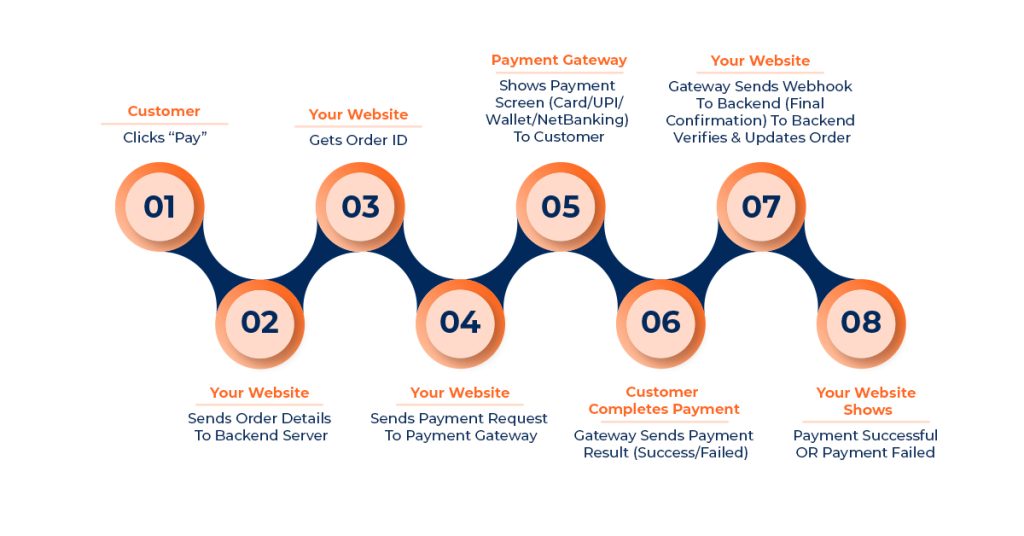
How Payment Gateway Integration Works
Integrating a payment gateway isn’t just adding a ‘Pay Now’ button. It’s a sequence of coordinated steps between your website, your backend server, and the payment processor — all happening in seconds.
Here’s the flow broken down into five simple stages:
1. Order Creation (Your Server)
Every payment starts with an order.
Your backend creates an order ID with details like:
- amount
- currency
- transaction reference
- customer info
This order ID becomes the ‘ticket’ your gateway uses to track the payment.
2. Payment Request (Frontend)
Once the order is created, your website shows the customer a checkout button or payment popup.
This step sends the order ID + amount to the gateway and opens the payment interface.
3. User Completes Payment (Payment Gateway)
Your customer selects a payment method:
- UPI
- Card
- Netbanking
- Wallet
- EMI, etc.
The payment is processed directly on the gateway’s secure environment — your website never handles card data directly.
4. Callback / Webhook (Server Response)
After the payment is completed, the gateway sends the result back in two ways:
- Callback (client-side):
Redirects the user to your success or failure page. - Webhook (server-side):
A secure notification sent to your backend with the final, verified payment status.
Webhooks are crucial because they confirm the payment even if the user closes the browser or loses internet access.
5. Final Confirmation (Your Website)
Your backend verifies the signature from the gateway and updates the order status to:
- Successful
- Failed
- Pending
Then your website shows the appropriate confirmation screen or order receipt.
Payment Flow Diagram (Simple Visual Overview)
Troubleshooting Payment Gateway Integration: Common Issues & Solutions
Here are the most frequent payment gateway integration issues—organized in a simple problem–solution table so you can troubleshoot quickly.
| Problem | Solution |
| ‘Invalid API Key’ | You’re using the wrong mode. Replace test keys with live keys (or vice versa). |
| Payment captured but order not updated | Configure webhook correctly and ensure webhook signature validation is implemented. |
| Duplicate orders created | Add idempotency logic—every order request must include a unique order reference from your system. |
| Frontend shows ‘success’ but backend shows ‘failed’ | Don’t rely on frontend callbacks. Use webhooks as the final source of truth. |
| Payment stuck in ‘processing’ | Implement proper UPI timeout handling and ensure webhook retries are enabled and logged. |
| Checkout popup or redirect not opening | Check domain whitelisting in the gateway dashboard; make sure allowed origins are correctly added. |
| ‘Access Denied’ on API calls | Incorrect API request headers or using a public key for backend operations. Replace with secret key and correct headers. |
Final Best Practices
A smooth, reliable payment integration isn’t just about connecting APIs — it’s about maintaining consistency, security, and clarity across your whole system. Keep these essentials in mind:
- Handle critical logic like order creation and signature checks on the backend.
- Use webhooks as the final confirmation source, not frontend messages.
- Store keys and configs securely using environment variables.
- Show clear payment statuses to reduce drop-offs and duplicate attempts.
- Log key events, especially webhook notifications and failures.
- Keep your integration updated with the latest SDKs and compliance changes.
Following these best practices ensures your payment system stays fast, secure, and reliable as your business grows.
For a seamless and secure payment integration experience, consider IndiConnect, a trusted payment gateway platform designed to simplify your onboarding and provide robust transaction control.
Get started with IndiConnect today and build a payment system your customers can trust.







AI Music Generator
I completely agree with the point about how critical it is to align the frontend, backend, and payment processor. Many businesses underestimate how even small mismatches can derail the whole process and lead to lost sales.
DR. Smith
Great post, it clearly explains how payment gateway integration works beyond just adding a checkout button. The breakdown of backend logic, webhooks, and testing highlights issues many teams overlook. This kind of step by step guidance is useful for businesses aiming to avoid failed payments and ensure a reliable checkout experience.